Roles & Permissions
Roles & Permissions
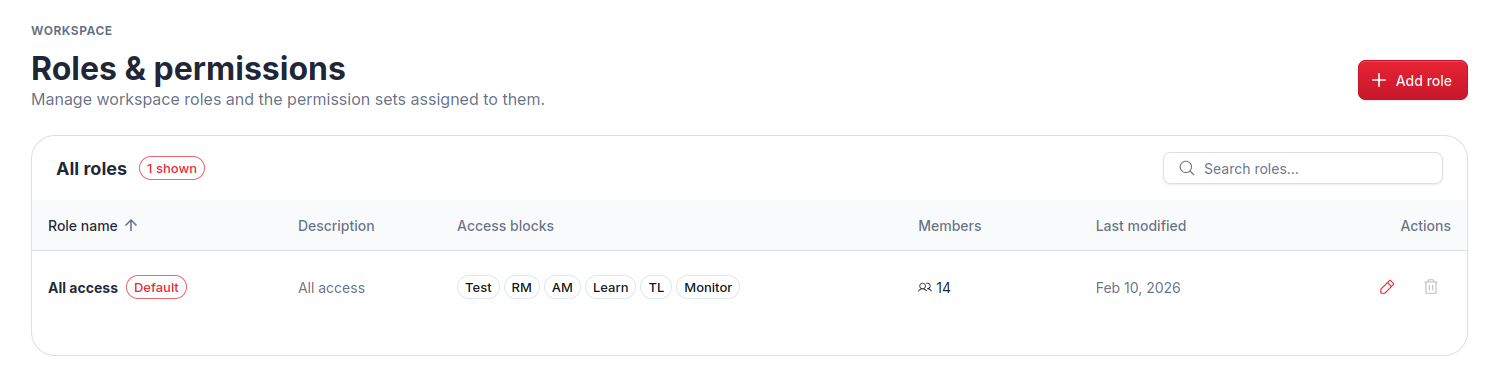
The Roles & Permissions page lets you create and manage custom permission roles for the active workspace. Roles define what actions members can perform inside the VSEC engineering platform — such as creating benches, editing test plans, or running tests.
Custom roles are only available on paid plans. On the free workspace, Roles & Permissions does not appear in the sidebar. The page is available to workspace admins only.
Creating a Role
- Click
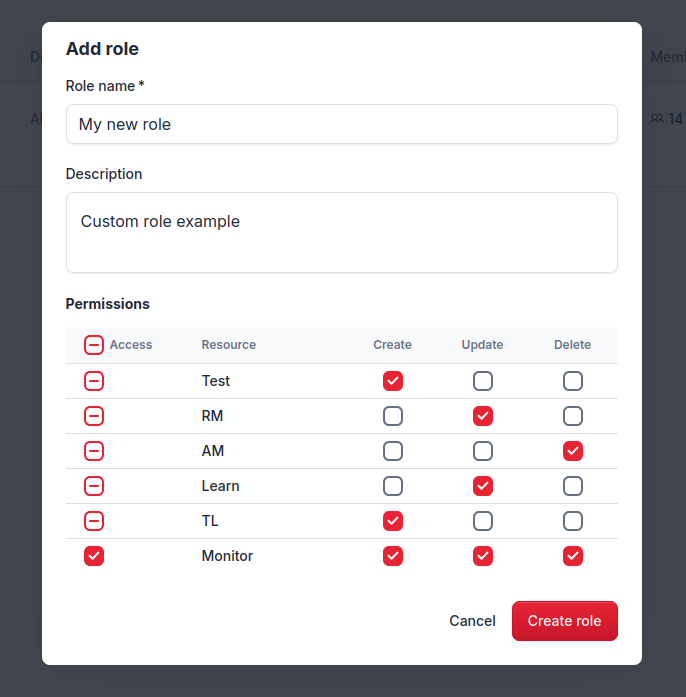
Add role. - Enter a role name (required) and an optional description.
- Use the permission cards to define what this role can do. Each card covers one area of the platform. Inside a card, each row is a permission group and the columns are View, Create, Update and Delete. Click a Granted or Denied chip to toggle that permission.
- Click a group name to grant or deny every action in that row at once.
- Use the checkbox next to a card’s title to select or clear every permission in that card.
- Click
Create roleto save.
Editing a Role
- Click the edit icon () next to a role.
- Adjust the name, description, or permissions.
- Click
Save changes.
Setting a Default Role
The default role is assigned automatically the first time a user signs in to the VSEC engineering platform, if they have no role yet. It is marked with a Default chip, and the first role you create becomes the default. To make another role the default, click the star icon (Set as default) next to it.
To change the default, click the star on a different role.
Deleting a Role
Click the trash icon () next to a role. A confirmation dialog shows how many members are currently assigned that role; deleting it removes the role from all of them.
The default role cannot be deleted. Assign a different role as the default first, then delete the old one.
Last updated on